Setting up CurrentWare Cloud

Setting up CurrentWare Cloud

Estimated time: 5–10 minutes  ·  No server setup required

Overview CurrentWare Cloud gives you complete visibility into how your team uses their computers - without managing any infrastructure. This guide walks you through signing up for a 14-day free trial and completing initial setup.

Step 1: Go to the Trial Sign-Up Page

Navigate to the CurrentWare trial page and click Start Free Trial.
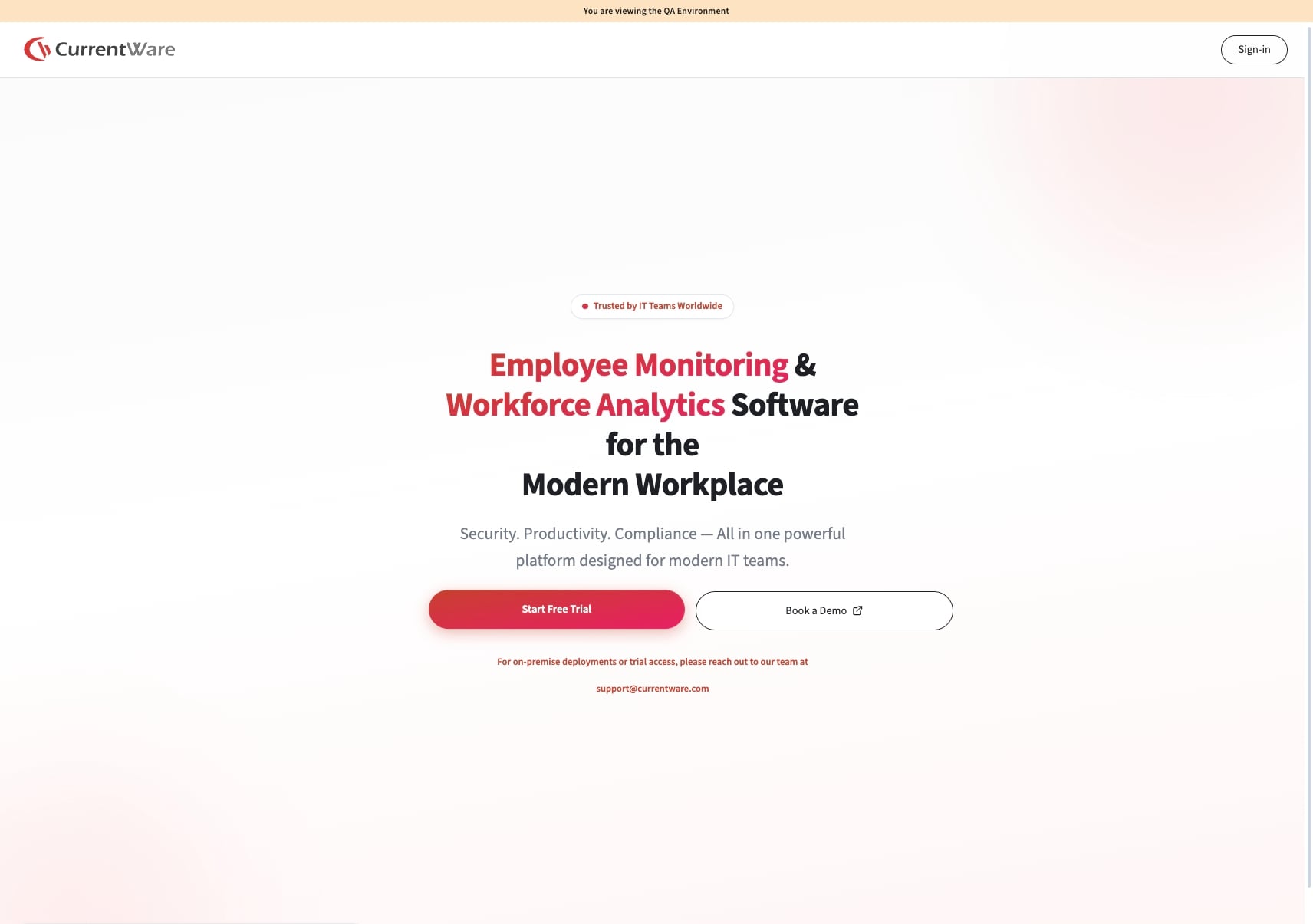
CurrentWare homepage with Start Free Trial button highlighted

Step 2: Fill Out the Sign-Up Form

Enter your first name, last name, and business email address. A business email is required to verify your account.
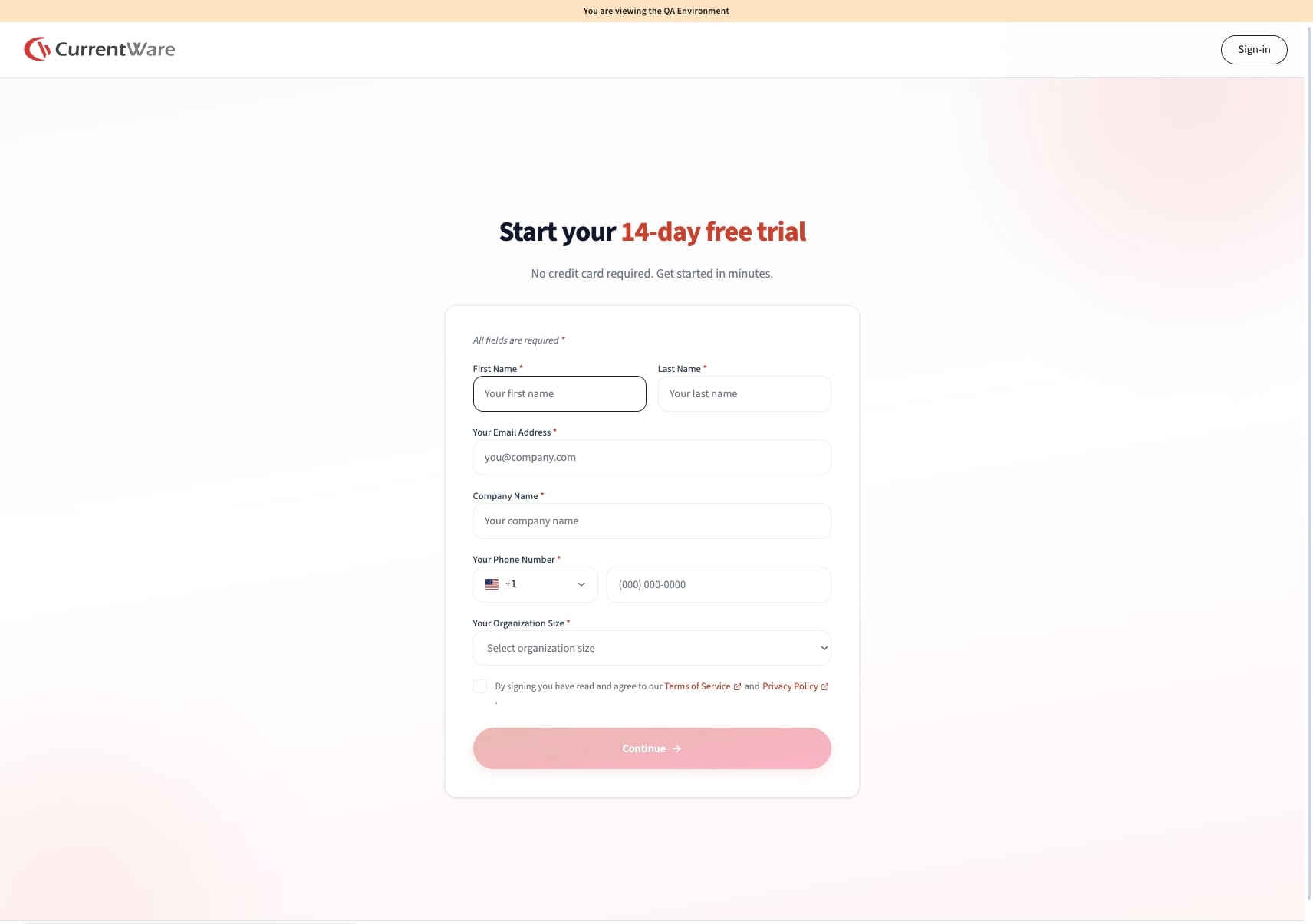
Sign-up form with name and email fields
Notes
Use your company email address - personal email addresses (e.g. Gmail, Hotmail) are not accepted.

Step 3: Verify Your Email Address

Check your inbox for a one-time passcode from CurrentWare. Enter the code on the verification screen and click Continue.
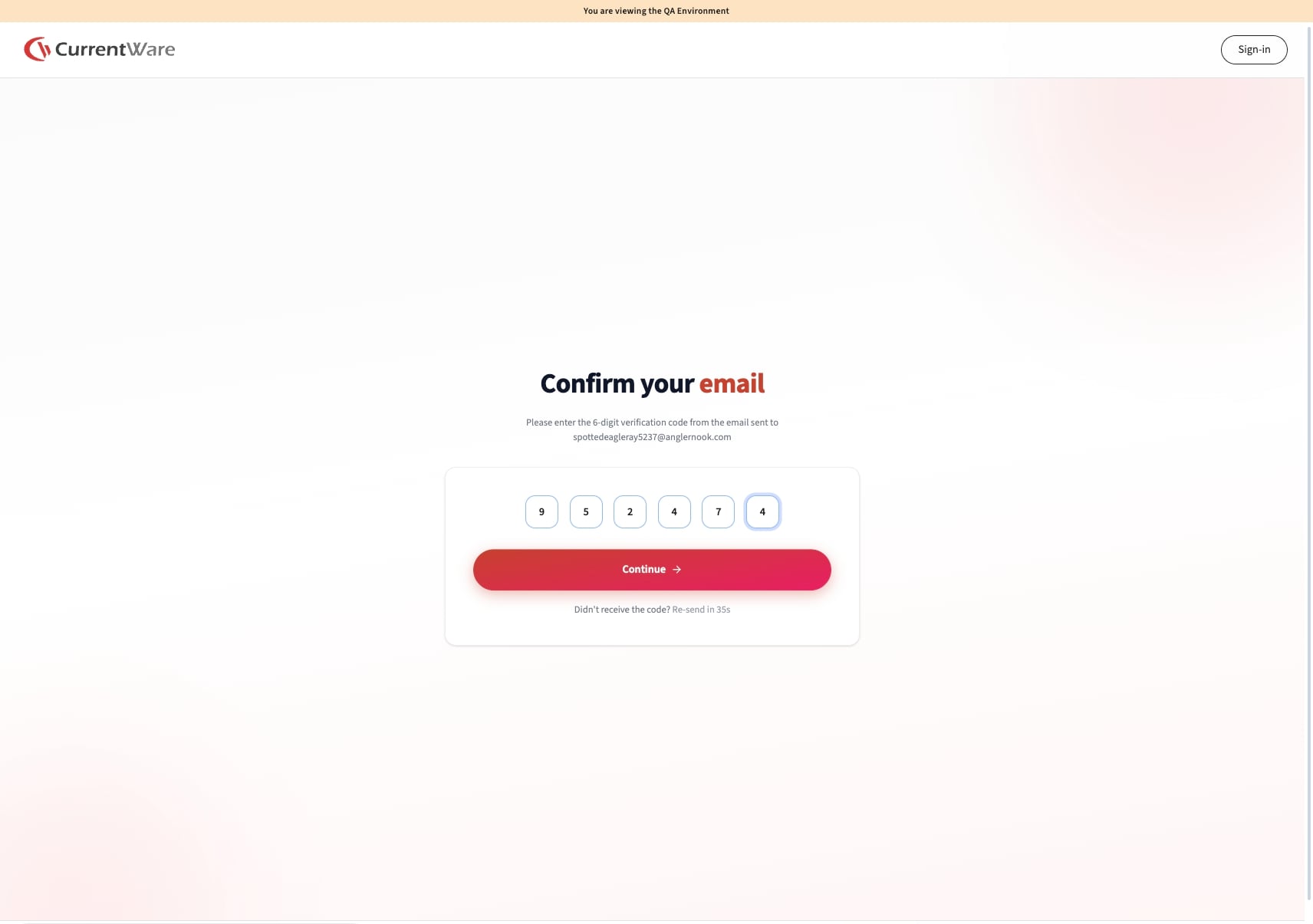
Email verification screen with OTP entry field
Notes
If you don't see the email within a few minutes, check your spam or junk folder.

Step 4: Create Your Password

Enter a strong password, then confirm it in the second field. Click Continue when done.
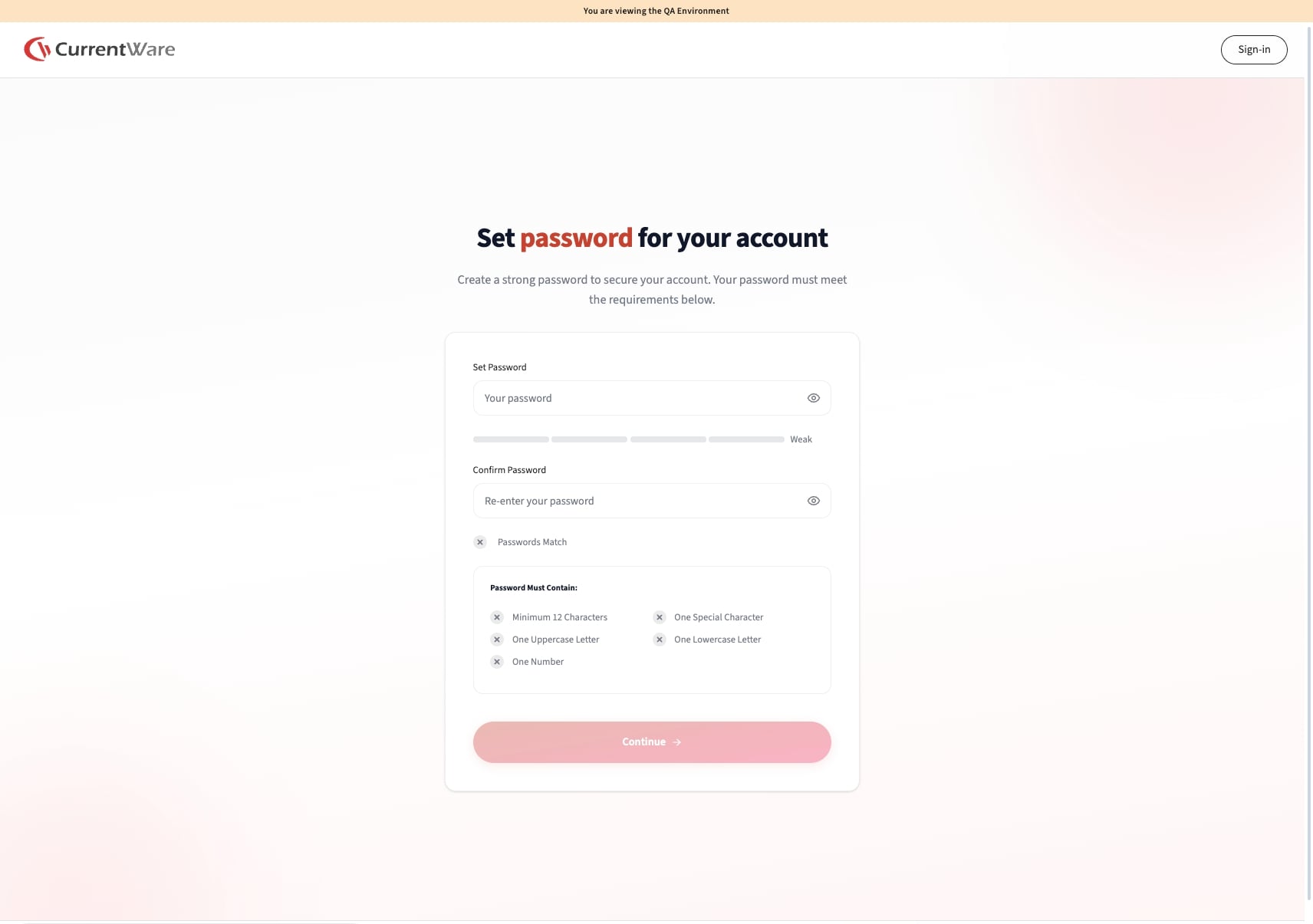
Password creation screen

Step 5: Name Your Portal

Choose a portal name that represents your organization. This name will identify your workspace within the platform. Click Continue.
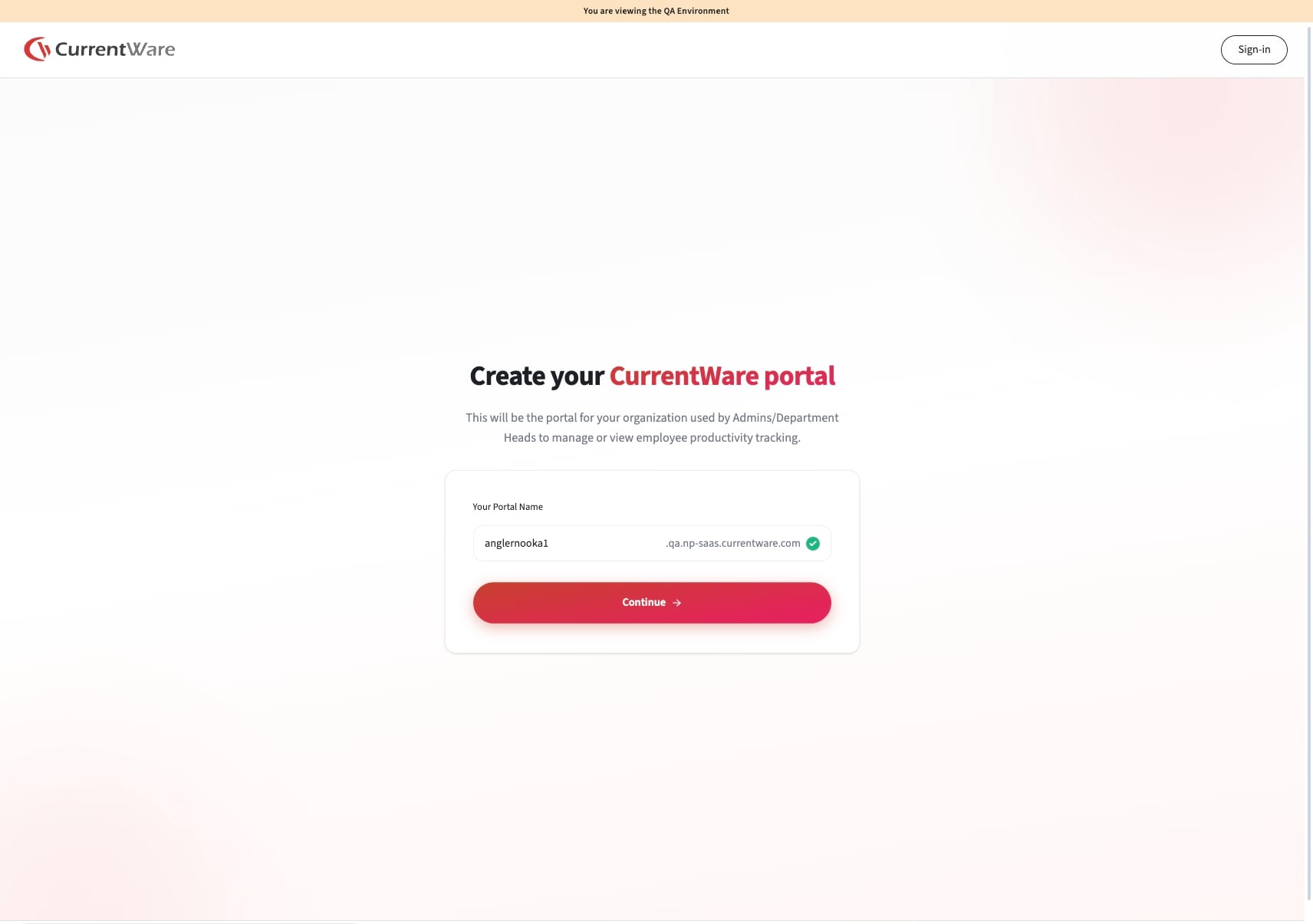
Portal name setup screen

Step 6: Initialize Your Tenant

Click Continue to provision your new cloud tenant. This takes just a moment. Once complete, you'll receive a welcome email containing your unique domain details.

Notes
Keep an eye on your inbox—the welcome email includes the URL you'll use to access your CurrentWare portal.

Step 7: Complete the Onboarding Questionnaire

Answer a few quick questions to help CurrentWare tailor your experience:

a) Your industry - Select the industry your organization operates in.
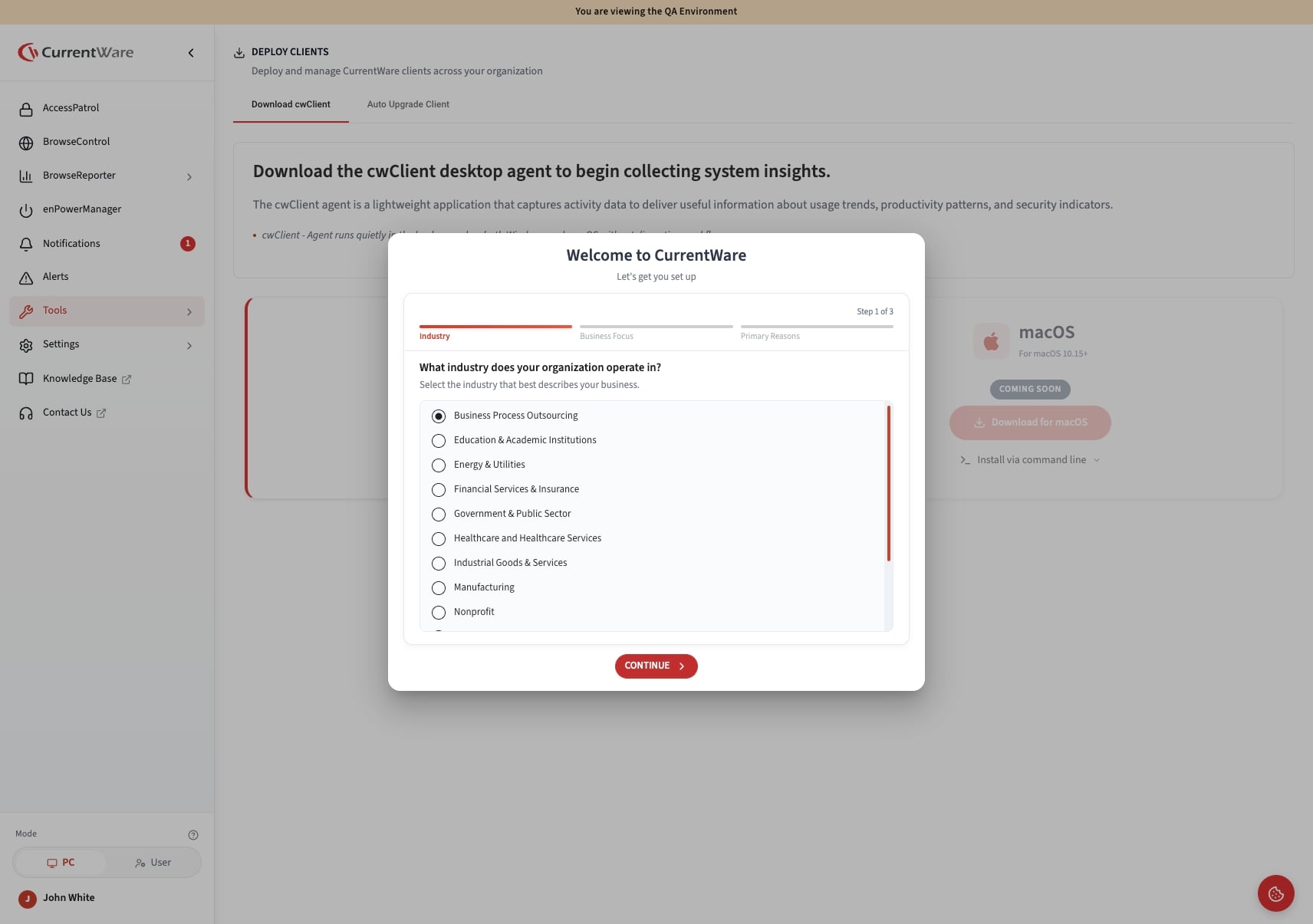
Industry selection in onboarding questionnaire

b) What you want to improve - Select the area of your business you're looking to enhance (e.g., compliance, productivity monitoring).
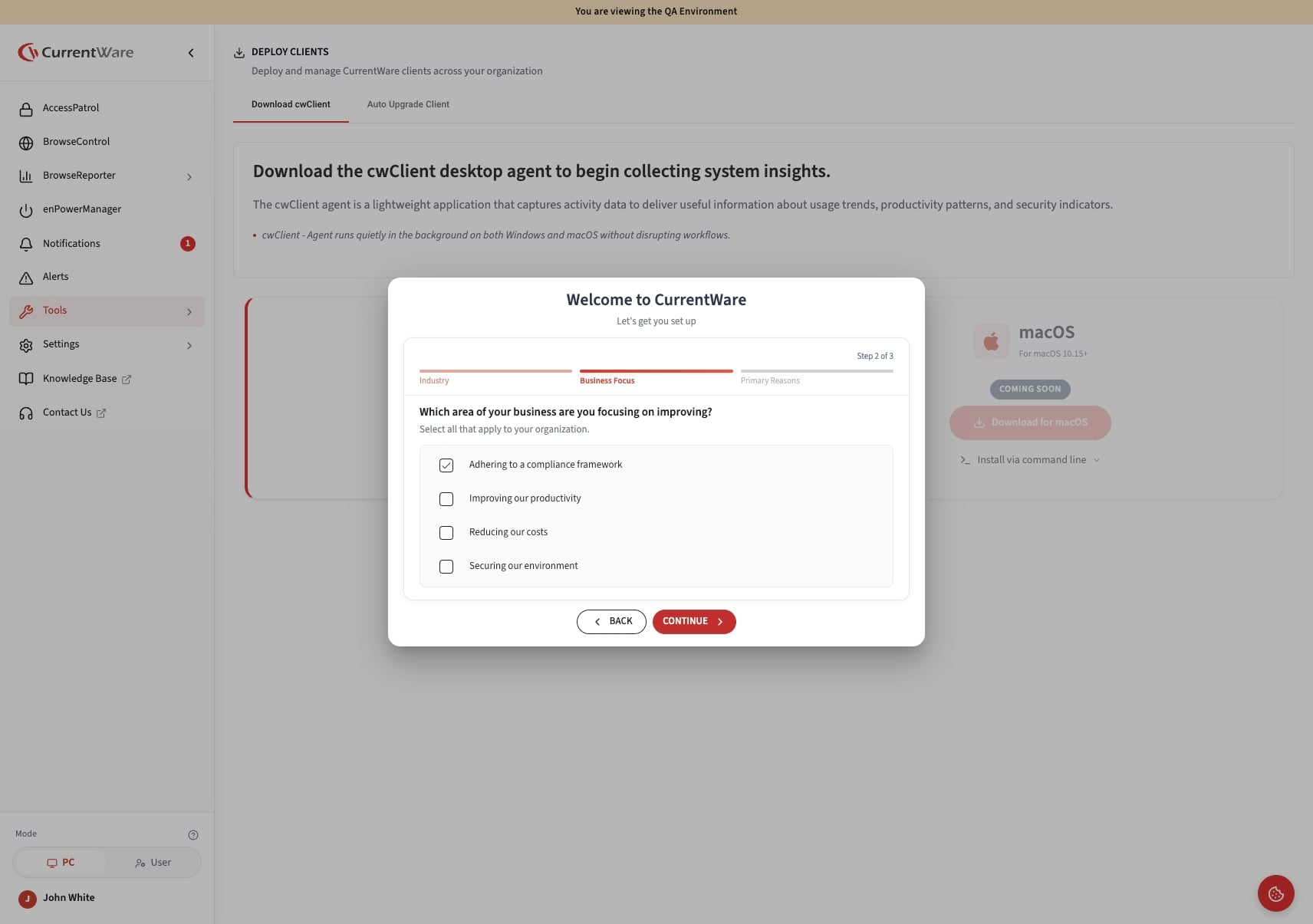
Business improvement goals selection

c) Your primary goals - Choose the main reasons you're using CurrentWare (e.g., compliance framework integration, employee monitoring).
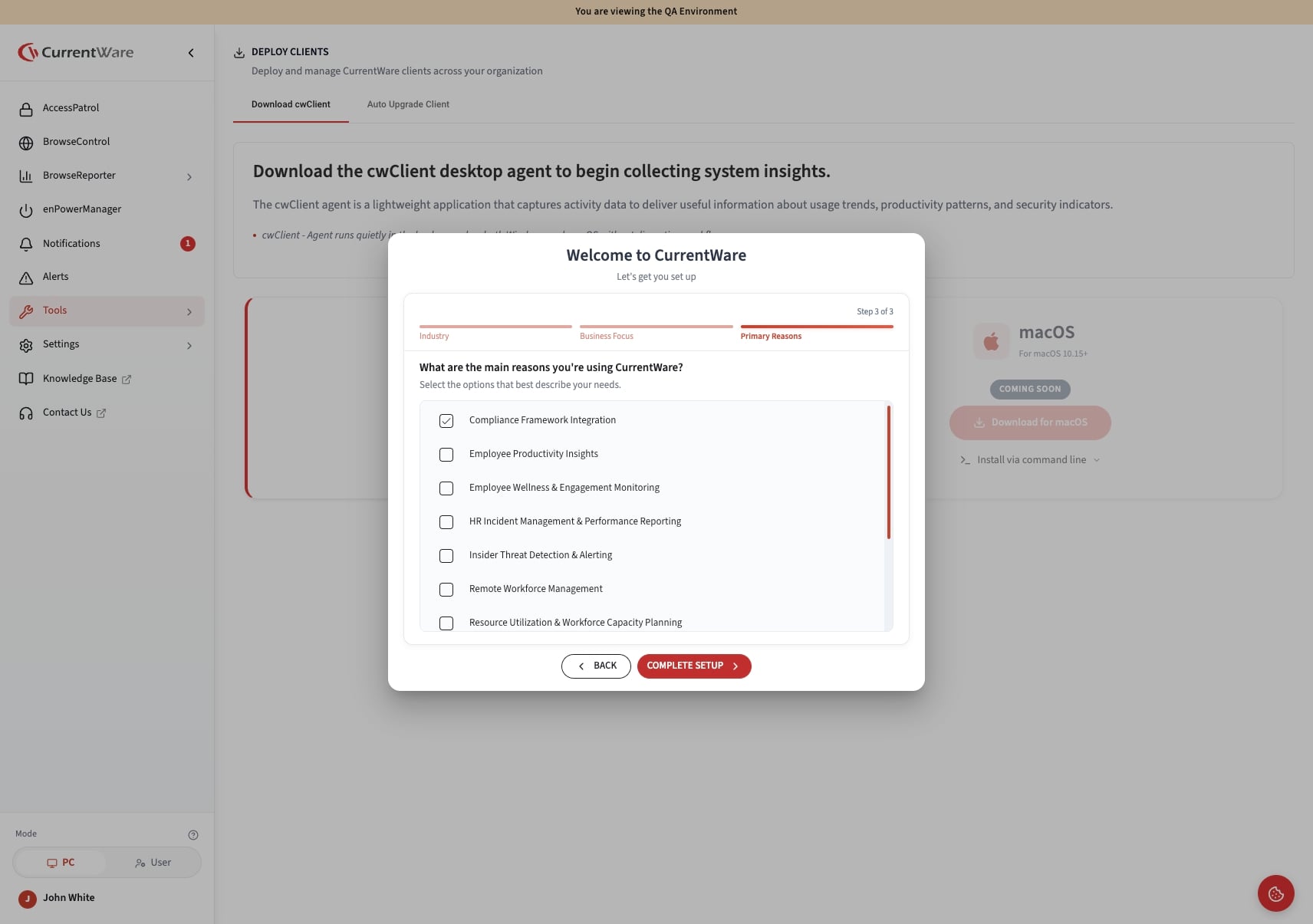
Primary goals selection screen

Step 8: Deploy the Agent to Your Devices

Once your portal is ready, deploy the CurrentWare agent across your organization's computers. Watch the step-by-step deployment video available in your portal to get started.
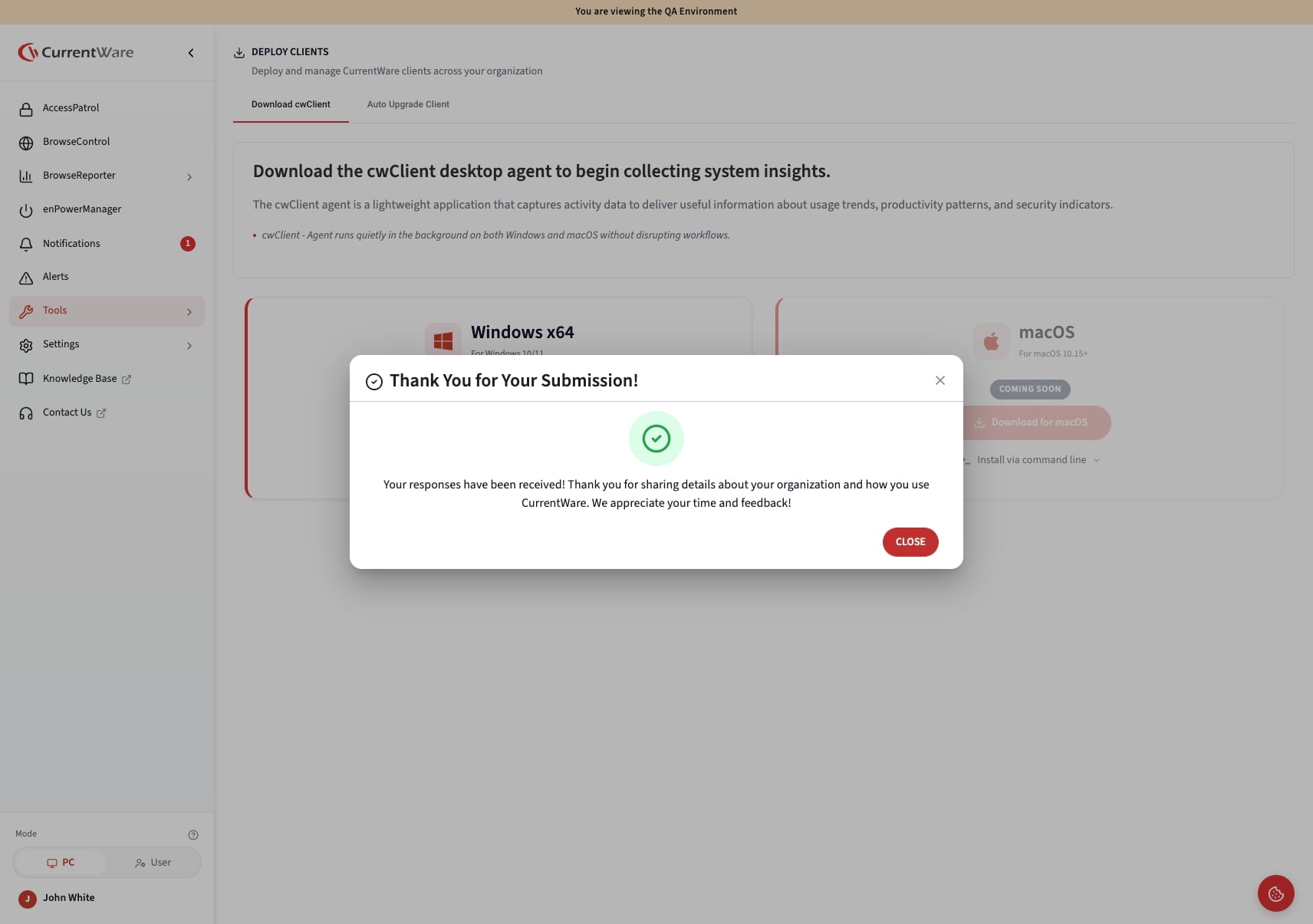
Agent deployment instructions screen
✅ You're all set! Your 14-day free trial is now active. Our support team is here to help - reach out anytime if you need guidance getting the most out of CurrentWare Cloud.

    • Related Articles

    • Try CurrentWare Cloud free for 14 days

      Get full access to CurrentWare Cloud with no feature restrictions* for 14 days. Install the lightweight agent on your compatible Windows or MAC computers and manage everything through the cloud, no on-premises server required. No credit card ...
    • System Requirements (CurrentWare Cloud)

      CurrentWare Cloud is a fully hosted, managed version of CurrentWare - there's no server to install, patch, or maintain. CurrentWare hosts and manages the backend infrastructure for you. All you need to install is the lightweight CurrentWare Client on ...
    • Deploy the CurrentWare Client to Your Devices

      Estimated time: 5–10 minutes · Windows & macOS Overview Your CurrentWare Cloud tenant is ready - the next step is deploying the CurrentWare Client (agent) to your organization's computers. No data appears in your dashboards and reports until agents ...
    • How to Change the Server Timezone in CurrentWare Cloud

      Estimated time: 2 minutes Overview The Server Timezone setting controls how timestamps appear across your CurrentWare Cloud console. If your data is showing times that don't match your local time, updating this setting will correct it. Client side ...
    • How to Set Up Two-Factor Authentication (2FA)

      Estimated time: 2–5 minutes Overview Two-factor authentication (2FA) adds an extra layer of security to your CurrentWare Cloud account. Once enabled, you'll need to verify your identity with a second method each time you sign in. You can choose ...